

Every business that moves to Microsoft 365 hits the same wall about three weeks in. The platform offers three places to put a document, they all look like folders, they all sync to the same laptop, and nobody explains which one to use. So people pick whichever appeared first, the finished contract ends up in someone's personal storage, and eighteen months later that person leaves and takes half the company's institutional memory with them.
The question of SharePoint vs OneDrive is not really a technology comparison, because they are not competitors. They are two different answers to the question of who owns a file, and getting that right up front prevents most of the mess that follows.
The One Distinction That Explains Everything
Here is the rule in a sentence: OneDrive holds files that belong to a person, and SharePoint holds files that belong to the business. Everything else follows from that.
A draft you are still thinking about, your notes, a template you built for yourself, the expense receipts you have not filed yet, those are personal work products and OneDrive is the correct home. The signed lease, the client folder, the policy manual, the current price list, those belong to the organization and should live in SharePoint from the moment they exist, not after somebody remembers to move them.

The Test That Settles Most Arguments
When staff cannot decide, give them one question: if this person left the company tomorrow, would the business need this file? If yes, it is a business file and it goes in the shared location. If the honest answer is that nobody would miss it, personal storage is fine.
That test also explains why the common shortcut fails. Sharing a file out of OneDrive feels identical to putting it in SharePoint, and for the next few months it behaves identically too, which is exactly why people do it. The difference only surfaces on the day the account is deactivated, and by then the file has become someone else's problem.
So Where Does Teams Fit?
Teams is not a third storage location, which surprises almost everyone. When you upload a file to the Files tab of a team channel, that file is stored in SharePoint, in a site created automatically for that team. Teams is a window onto SharePoint, not an alternative to it.
That single fact resolves a lot of confusion. Files shared in a Teams chat, as opposed to a channel, are different: those land in the sender's OneDrive and are simply shared with the other participants, which means a chat attachment inherits every weakness of a personal file that happened to get shared.
The Three Locations, Side by Side
Read the second row twice, because it is the one that costs businesses real money. When an employee is offboarded, their personal storage enters a retention period and is eventually removed, so any business document that lived only there is on a countdown that no one is watching, which is why file ownership belongs in the same conversation as the rest of your employee offboarding process.
How to Structure the Shared Side Without Overthinking It
The most common failure is not choosing the wrong location. It is putting everything in one enormous shared library that grows into a digital junk drawer, at which point people give up and go back to emailing attachments.
The structure that works for small businesses is boring and durable: separate sites for separate purposes, rather than one site with a hundred folders. A practice might have a site for the front office, one for clinical operations, and one for finance, each with its own membership, instead of one company site where the receptionist can browse payroll because no one wanted to think about permissions.
Permissions Follow the Site, Not the File
This is the mental shift that makes the platform behave. In a well built setup you grant access by adding someone to a site or a team, and they inherit everything inside it, rather than granting access to individual files fifty times a week. If you find yourself sharing individual documents constantly, that is a signal the structure is wrong, not that the platform is annoying.
Two practices keep this healthy over time. Use groups rather than named individuals wherever possible, so a role change is one edit instead of forty. And review who can reach what a couple of times a year, because permissions granted for a project in March are still live in November, a habit that pairs naturally with knowing which of your files are sensitive in the first place, the subject of our guide to data classification.
External Sharing Deserves a Decision, Not a Default
Microsoft 365 can share files with people outside your business, and the settings that control this are frequently left wherever they landed on day one. For a medical, legal, or financial practice, that is a decision worth making deliberately: whether external sharing is allowed at all, whether links expire, whether recipients must sign in, and whether anyone can share or only certain people.
The right answer varies by business, but the wrong answer is not knowing what your current setting is. Anyone in the office can find out in about a minute, and the tenant wide controls belong with the rest of your managed Microsoft 365 services configuration rather than in individual habits.
The Sync Trap, and Why Your Laptop Is Full
Both locations can sync to a computer, which is what makes them feel like ordinary folders. That convenience creates two problems worth naming, because both generate helpdesk tickets that look like something else entirely.
First, storage. Syncing an entire shared library copies every file to the laptop, and a practice with years of documents can fill a drive quickly. The fix is the Files On-Demand setting, which shows every file in the folder while downloading only the ones actually opened, and it is on by default in current versions, though older machines that were set up years ago often are not using it.
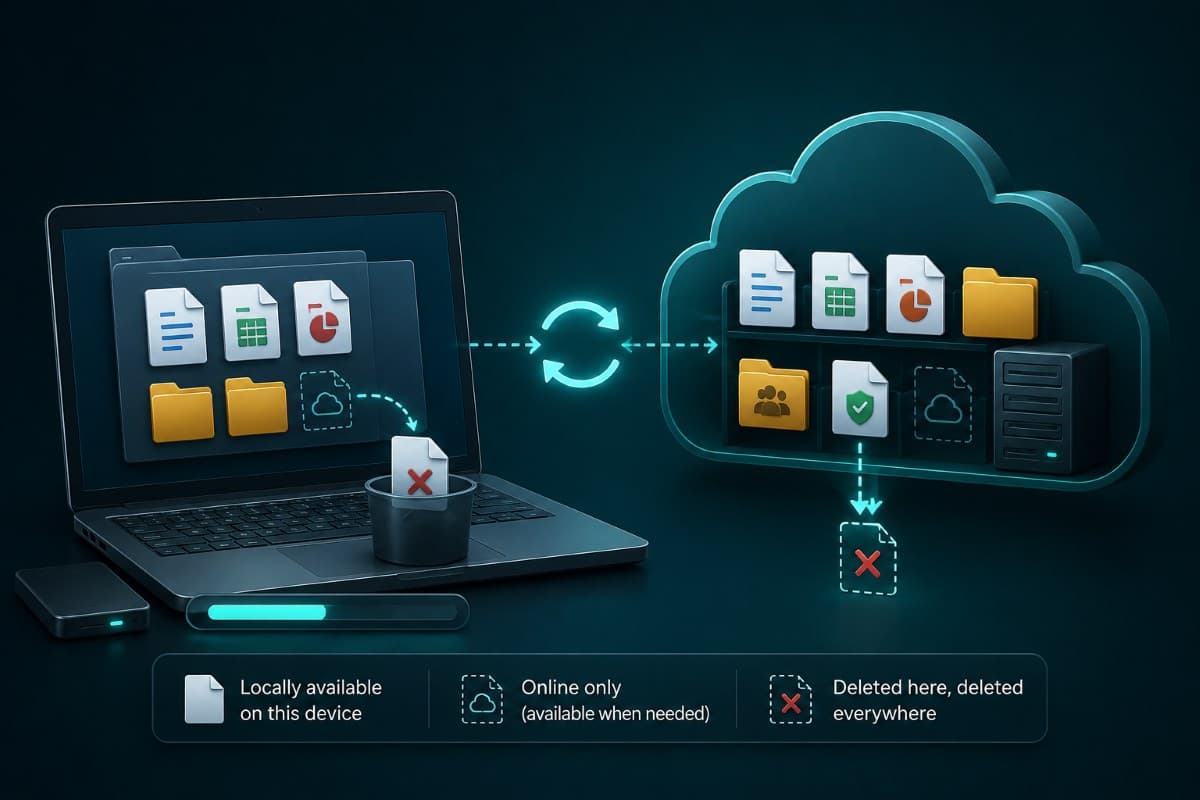
Deleted Here Means Deleted Everywhere
The second problem is more serious. Because sync mirrors changes in both directions, deleting a folder on a laptop deletes it in the cloud too, and encrypting a synced folder with ransomware encrypts the cloud copy just as faithfully.
Version history and the recycle bin recover many mistakes, and they are really useful, but they are not a backup and they have limits on how far back they reach. The relationship between cloud storage and real recovery is one of the most consistently misunderstood parts of Microsoft 365, and it is why serious practices pair the platform with actual backup and disaster recovery rather than trusting the sync icon.
The Questions Staff Keep Asking
Four questions come up in every rollout. Answering them in advance prevents the workarounds that quietly undo the structure you just built.
Can I still work offline? Yes, since synced files remain available on the laptop and changes upload when the connection returns, which matters for anyone working from a car or a client site. Where do I put something that belongs to two departments? In the site of whichever team owns the work, shared with the other, rather than copied into both, because two copies immediately become two different versions.
The Copy Problem Deserves Its Own Rule
What happens if someone needs a file from a site they cannot see? They ask the owner for access rather than asking for a copy, and that distinction is the whole difference between a permission model and a filing system made of email attachments.
And what about the client who sends everything to one person's inbox? Attachments get moved into the client folder the same day, because a business whose records live in individual mailboxes has no records, only correspondence. That habit also decides whether a departing employee takes anything important with them.
Naming Is Not Bureaucracy
The last piece is a naming convention people can follow without thinking: client name first for client work, date in a sortable form where dates matter, and no initials or personal shorthand anywhere. It sounds trivial and it decides whether search works.
Modern search is good enough that deep folder trees are less useful than they feel, so favor fewer folders with consistent names over elaborate hierarchies. The test is whether a new hire can find last year's signed agreement without asking anyone.
Fixing an Environment That Is Already a Mess
Most businesses reading this are not starting fresh. They have three years of files scattered across personal storage, a Teams site per project including several nobody has opened since last spring, and at least one shared folder that everyone can see and no one will admit to creating.
The cleanup that works is staged rather than heroic. Start by finding the business critical files sitting in personal storage, since that is the exposure with a deadline attached, and move those first. Then agree the structure, three to six sites with clear names beats twenty with clever ones. Then move content by area rather than all at once, and finally set the rules for new material so the problem does not regrow, which is the same discipline described in our guide on moving to cloud document storage in the first place.
Write the Rule Down in Five Lines
Whatever you decide, the deciding is worth less than the writing down. A one-page note pinned where staff can see it prevents almost all future drift.
- Personal drafts and notes: your own storage, and nothing the business would need if you left.
- Anything a client or a colleague depends on: the shared site for that area, from the moment it exists.
- Active work with a group: the team channel for that group, which puts it in the shared site automatically.
- Never the desktop, and never as an email attachment sent to yourself.
- Outside sharing: only through approved links, following whatever rule the practice has set.
Five lines, agreed once, save an enormous amount of archaeology later. Businesses in the region can have that structure designed and the migration handled by a provider offering IT services in Ventura County, including the permission model that keeps it clean.
Practices closer to the northern edge of the county can arrange it through IT support in Santa Clarita, starting with an audit of what is sitting in personal storage. Remember what you are actually buying: the structure is the deliverable, and the migration is just the labor.
Frequently Asked Questions
Ownership. OneDrive holds files that belong to an individual, such as drafts, personal notes, and work in progress, while SharePoint holds files that belong to the organization, such as client folders, contracts, and policies. Both sync to a computer and look like ordinary folders, which is why people mix them up. The practical test is simple: if the business would need the file after that person left, it belongs in SharePoint from the start rather than being moved there later.
It depends on where you shared them. A file uploaded to the Files tab of a team channel is stored in SharePoint, in a site created automatically for that team, so Teams is a window onto SharePoint rather than a separate storage system. A file sent in a private Teams chat is different: it is stored in the sender's OneDrive and shared with the participants, which means it carries the same risk as any other personal file when that person leaves.
Their personal storage enters a retention period after the account is deactivated and is eventually deleted, so any business document that existed only there is on a countdown. Before the account is closed, someone should review the contents and move anything the business needs into the shared site where it should have lived. Making that a standard step of offboarding is far more reliable than trying to recover files after the fact.
No, and this catches businesses regularly. Sync copies changes in both directions, so deleting a folder on a laptop deletes the cloud copy too, and ransomware that encrypts a synced folder encrypts the cloud version just as faithfully. Version history and the recycle bin recover many everyday mistakes and are worth understanding, but they have time limits and they are not designed for full recovery. Treat backup as a separate arrangement that works alongside the platform.
Fewer than most end up with. Three to six sites that match how the business is organized, for example front office, clinical or operations, and finance, works better than one site with dozens of folders or twenty sites created for individual projects. Grant access by site membership rather than sharing files one at a time, use groups instead of named individuals, and review membership a couple of times a year so old project access does not quietly persist.
When not one person in the office can say with confidence where a signed client document belongs, talk to GlobeVM: we settle the SharePoint vs OneDrive question for your business, move what is sitting in the wrong place, and set permissions so the answer stays obvious.
Comments
0 Comments