
Most businesses sign up for Microsoft 365, migrate their email and files, and assume that because it comes from Microsoft, it is secure by default. That assumption is where the trouble starts. Microsoft 365 is a powerful platform, but out of the box it is configured for easy adoption, not maximum security, and the gap between those two is exactly where attackers operate. The good news is that closing most of that gap does not require expensive add-ons or deep technical skill. It requires knowing which settings matter and turning them on. This guide walks through the Microsoft 365 security settings most businesses miss, why each one matters, and how to think about them, written for the person making the decision rather than the engineer typing the commands.
Why default Microsoft 365 settings leave you exposed
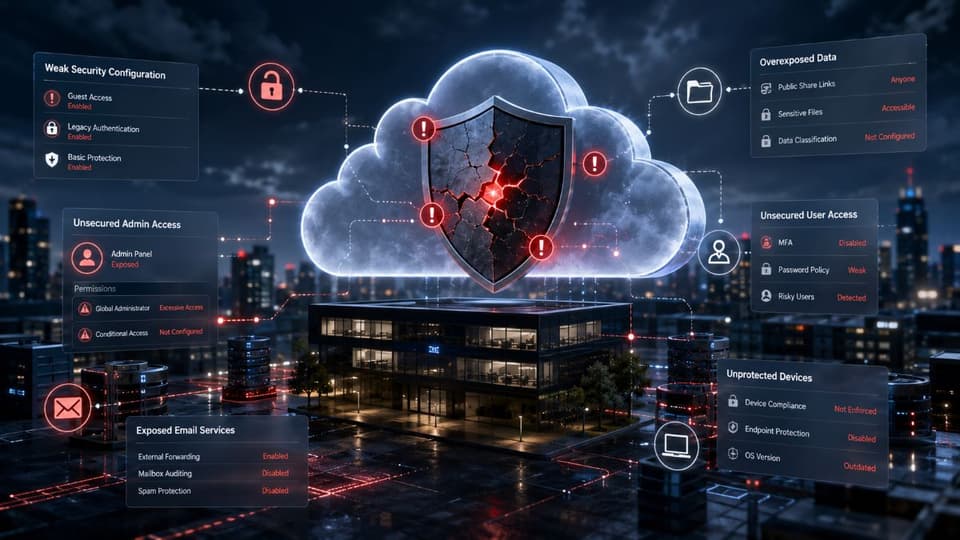
Microsoft has improved its defaults over the years. Newer tenants come with a feature called Security Defaults that switches on some baseline protections automatically, and that is a genuine improvement over the past. But Microsoft itself is clear that these defaults are a starting point, not a complete security posture. They are designed to apply broadly to millions of organizations without breaking anyone's workflow, which by definition means they are not tuned to your specific risks.
The result is that a freshly configured Microsoft 365 environment typically has weak or inconsistent protection against the most common attacks: stolen passwords, phishing, malicious email, and unauthorized access from anywhere in the world. Each of the settings below addresses one of those gaps. None of them are obscure. They are simply turned off, set too loosely, or never reviewed, because no one told the business they needed attention.
Identity and access: the settings that stop most attacks
The majority of business email compromises begin with one thing: someone gets a valid username and password they should not have. Identity protection is therefore the highest-value area to address, and it is where the most commonly missed settings live.
Multi-factor authentication for everyone, without exceptions
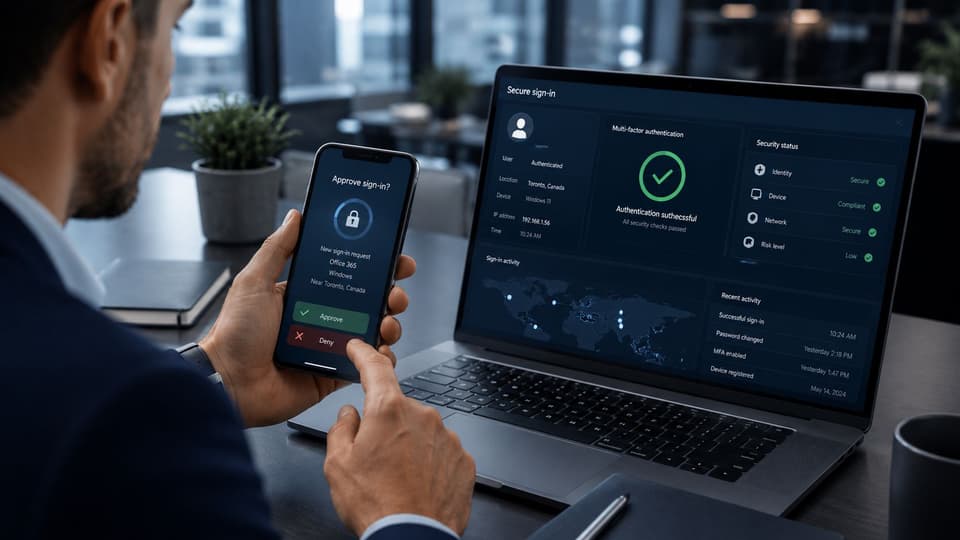
Multi-factor authentication, or MFA, requires a second proof of identity beyond a password, such as an approval on a phone. It is the single most effective control against account takeover, because a stolen password alone becomes useless. Many businesses enable it for some users but exempt executives or busy partners who find it inconvenient. That exemption is exactly backward, because those high-access accounts are the most valuable targets. MFA should apply to every account, with no carve-outs. If your environment relies only on Security Defaults, basic MFA may be partially in place, but most businesses benefit from configuring it deliberately rather than leaving it to the default behavior.
Conditional access policies
Conditional access is one of the most powerful and most underused capabilities in Microsoft 365. It lets you set rules about the circumstances under which access is granted. For example, you can block sign-ins from countries where you have no employees or customers, require extra verification when someone signs in from an unfamiliar location or device, or block older, insecure apps from connecting at all. A business that operates entirely in California has little reason to allow logins from the other side of the world, and a simple conditional access rule closes that door. These policies generally require a specific licensing level, so it is worth confirming what your subscription includes, but where available they are transformative.
Disabling legacy authentication
This is the quiet one that catches many businesses. Older email protocols that predate modern security cannot enforce MFA, which means an attacker using one of these legacy methods can sometimes bypass your MFA entirely. Microsoft has been phasing these out, but many tenants still allow them, leaving a hole behind an otherwise strong front door. Blocking legacy authentication is one of the highest-impact changes a business can make, and it is almost always overlooked.
Reviewing administrator accounts
Administrator accounts hold the keys to everything, yet businesses frequently have more of them than they realize, sometimes left over from a setup project or a former employee. The principle is least privilege: as few administrators as necessary, each using a separate account for administrative work rather than their everyday email account, and every one of them protected by MFA. Reducing and tightening admin access shrinks the most dangerous attack surface in your tenant.
Email protection: closing the most common entry point
Email remains the primary way threats reach a business. Microsoft 365 includes meaningful email protection, but several settings that strengthen it significantly are not fully enabled by default.

Anti-phishing and impersonation protection
Microsoft 365 can detect and act on emails that impersonate your domain or your key people, a tactic at the heart of business email compromise. The protection exists, but its strength depends on configuration. Tuning anti-phishing policies, including protection for specific high-value users such as your finance team and leadership, meaningfully reduces the chance that a convincing impersonation reaches an inbox. This kind of targeted email defense pairs naturally with the broader cybersecurity solutions a business should have in place.
Safe Links and Safe Attachments
These features check links and attachments for malicious content, including at the moment a user clicks rather than only when the email arrives. That timing matters, because attackers sometimes weaponize a link after delivery to evade initial scanning. Depending on your subscription, these capabilities may be available but not switched on, and turning them on adds a strong layer of protection against the links and files that carry most malware.
Email authentication: SPF, DKIM, and DMARC
These three records, configured in your domain settings, work together to prove that email claiming to come from your domain actually does. Properly set up, they make it far harder for someone to spoof your business in emails to your clients, and they improve your legitimate email's deliverability as a bonus. Many businesses have one of the three in place and assume they are covered, when all three are needed to close the gap. This is a technical configuration, but its absence is a common and consequential oversight, and one we see regularly when reviewing environments for businesses across the San Fernando Valley.
Data protection and visibility: the settings you only miss when it is too late
Some settings do not prevent an attack so much as limit the damage and give you the ability to understand what happened. These are routinely neglected because their value is invisible until an incident occurs.

Audit logging
Audit logging records activity across your tenant: who signed in, what files were accessed, what changed. Without it, investigating a suspected breach is nearly impossible, and you cannot answer the basic question of what an attacker actually did. While Microsoft has expanded logging availability, businesses should confirm that auditing is enabled and that logs are retained long enough to be useful. A log you never turned on is the one you will desperately wish you had. Continuous attention to these signals is part of what effective remote monitoring and management provides, turning raw logs into early warning.
Data loss prevention policies
Data loss prevention, or DLP, lets you set rules that detect and restrict sensitive information leaving your organization, such as credit card numbers, health records, or financial data in outgoing email. For businesses handling regulated information, this is both a security control and a compliance one. The capability is built in for many subscriptions but does nothing until you configure policies that reflect the kind of data you actually hold.
Checking your Microsoft Secure Score
Microsoft provides a built-in dashboard called Secure Score that measures your tenant's security configuration and recommends specific improvements, each with an explanation of its impact. It is free, already in your environment, and one of the most useful starting points for understanding where you stand. Most businesses have never looked at it. Reviewing your Secure Score is often the fastest way to see, in plain terms, which of the settings in this guide are missing from your own environment.
The licensing reality you should understand
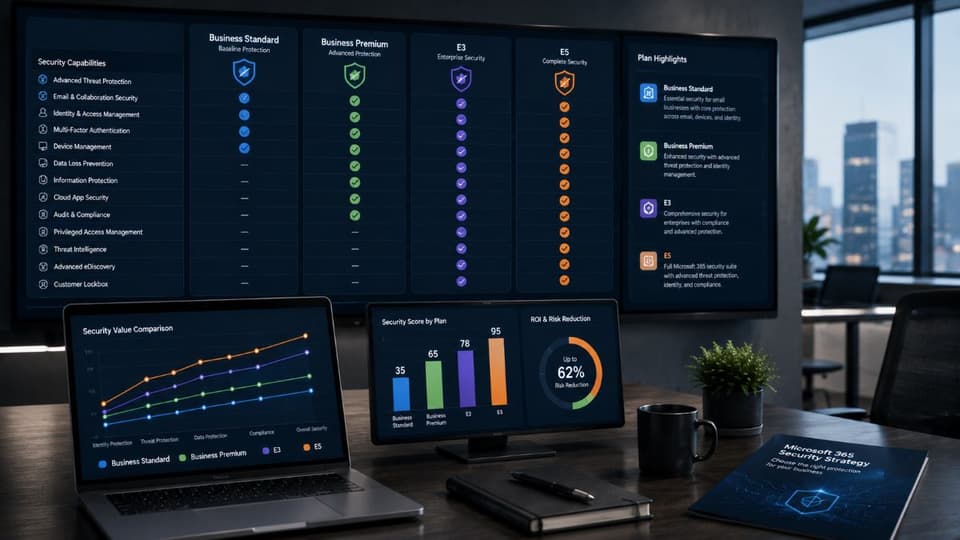
Here is an honest point that many guides skip. Not every protection described above is available at every subscription level. Some capabilities, particularly the more advanced conditional access and threat protection features, require specific Microsoft 365 or add-on licenses. A business on a basic plan has fewer of these levers available than one on a premium business or enterprise plan.
This does not mean basic plans are insecure, because the highest-value settings such as MFA, blocking legacy authentication, tightening admin accounts, and email authentication are available broadly. But it does mean that part of securing Microsoft 365 is matching your subscription to your actual risk. For a business handling sensitive client or regulated data, a plan that includes stronger protection is often worth the modest additional cost. Understanding what you are paying for, and what you are missing, is part of getting this right, and it is one reason a managed approach to Microsoft 365 management tends to deliver better protection than a one-time setup.
A practical order for fixing this
If you are looking at your own Microsoft 365 environment and wondering where to begin, this sequence puts the highest-impact, lowest-cost changes first.
- Turn on MFA for every account, including executives and admins. Nothing else delivers as much protection for as little effort.
- Block legacy authentication. This closes the hole that can quietly bypass your MFA.
- Reduce and separate administrator accounts. Fewer admins, separate admin accounts, all with MFA.
- Set up SPF, DKIM, and DMARC. Stop others from spoofing your domain and protect your clients.
- Review your Secure Score. Let Microsoft's own tool show you the remaining gaps specific to your tenant.
- Configure conditional access, anti-phishing, and DLP as your license allows. Layer on the stronger protections your subscription supports.
- Confirm audit logging is on and retained. So that if something does happen, you can actually investigate it.
Most of these are achievable for a business willing to spend the time, and the first few cost nothing beyond effort. The harder part is doing it thoroughly, keeping it configured correctly as Microsoft changes the platform, and not assuming a one-time setup stays secure forever. For many small and mid-sized businesses across the Los Angeles area, that ongoing attention is exactly what a managed IT provider in Los Angeles handles, so security keeps pace with the platform rather than drifting as settings and threats evolve.
If you would like to know exactly which of these settings are missing from your own Microsoft 365 environment, the team at GlobeVM can review your configuration against current best practices and give you a clear, prioritized plan to close the gaps.