
Walk through any office's security review and one device gets skipped every time: the machine in the corner that prints, scans, and copies everything the business does, contracts, patient forms, payroll, tax returns, and has been running with the password it shipped with since the day it arrived. Printer security sounds like a joke topic until you learn what a modern multifunction printer actually is: a networked computer with its own operating system, its own storage that quietly keeps copies of documents, and its own connection to your network and often the internet. This guide explains why the friendliest machine in the office deserves a place in your security thinking, what the real risks are, and the short checklist that closes most of them in an afternoon.
Your Printer Is a Computer That Happens to Print
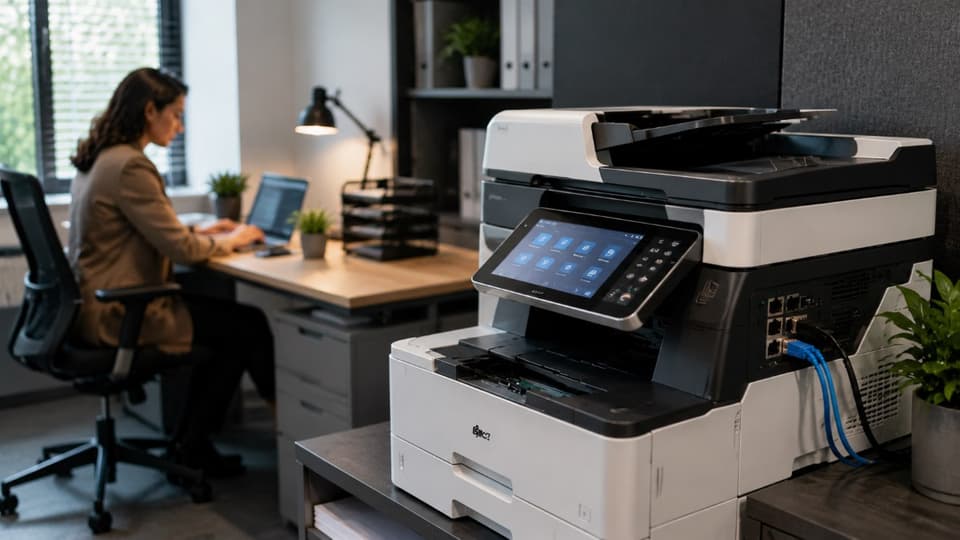
The mental model most businesses carry, the printer as a dumb appliance, is about twenty years out of date. A modern multifunction device runs a full operating system, hosts its own web-based administration page, connects to your network and your email system, stores data on internal memory and often a hard drive, and accepts software updates exactly like the laptops around it. It scans to email, saves to folders, remembers address books full of staff and client contacts, and in many offices holds copies or traces of recent jobs on its internal storage. In other words, it has every property that makes a device worth attacking, network access, stored data, credentials, and processing power, combined with the one property attackers love most: nobody is watching it. Security practitioners call devices like this the forgotten endpoints, and the same logic that puts protection on every laptop through a program of endpoint security applies to the machine that touches more sensitive paper than any laptop in the building.
The Risks, Concretely
Skip the hypotheticals; here is what actually goes wrong with unmanaged print devices, roughly in order of how often it bites small businesses.
The Documents Living Inside the Machine
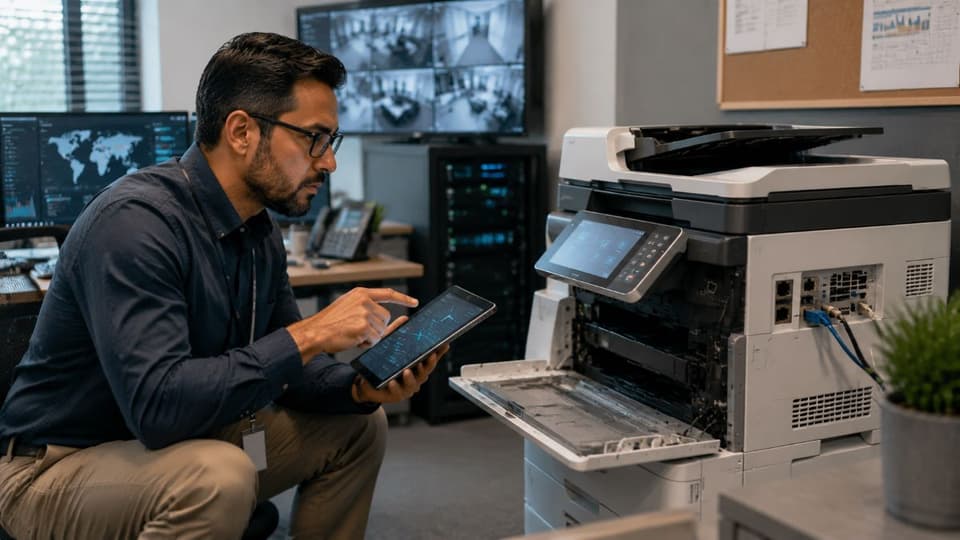
Multifunction devices commonly store what passes through them: scan jobs, copies, faxes, and print spools can persist on internal drives and memory long after the paper came out. For years this was invisible, until it famously was not: in one widely reported case, a health organization returned leased copiers whose drives still held thousands of patients' records, and the resulting regulatory settlement turned "the copier's hard drive" into a compliance lesson taught to this day. The exposure has two moments: while the device sits on your network holding recent documents, and at the end of its life, when it leaves the building with everything still inside. Both are manageable, and neither manages itself.
Default Passwords and the Open Admin Page
Every networked printer has an administration page, and a remarkable share of them still answer to the factory password printed in the manual, which is to say, to anyone. An open admin page hands over more than toner levels: address books full of names and emails, stored scan destinations, saved credentials for the email and folders the device sends to, network configuration, and in many models access to stored or recent jobs. Attackers scan for exactly these pages because they are the easiest credentials in any building, and because a trusted device inside your network makes an excellent quiet foothold from which to reach everything else.
Old Firmware, Exposed Services, and the Internet
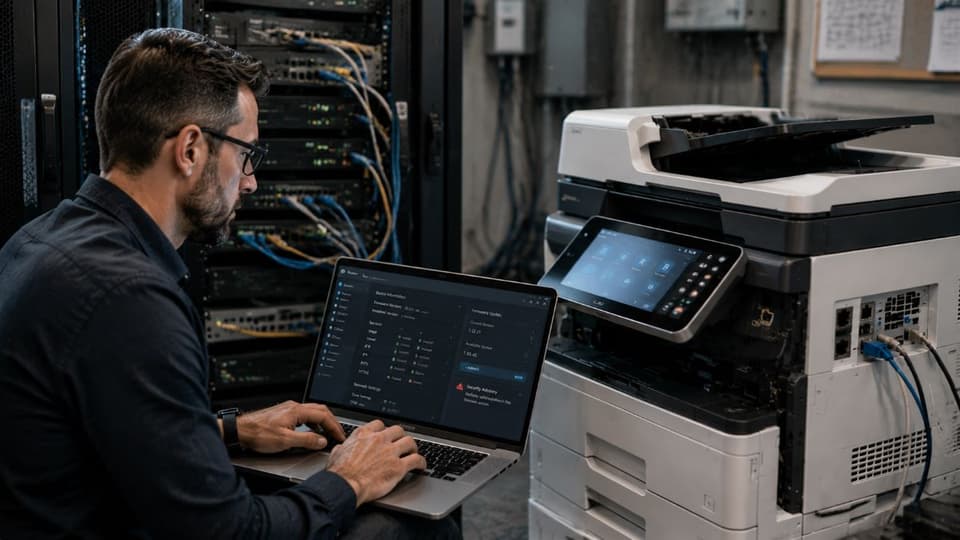
Printers receive security updates like any computer, and almost nobody installs them, so known, fixed flaws stay open on devices for years. Many ship with every convenience service switched on, old protocols, remote printing features, cloud connectors, each one a door that should be closed unless used. And a surprising number of office printers are reachable from the internet entirely by accident, through casual network setups or features enabled by default, which converts a forgotten endpoint into a public one. None of this requires exotic defense; it requires the same boring hygiene your other systems get, applied to a device the routine forgot, which is exactly the kind of gap that continuous remote monitoring and management exists to close, since a watched device gets its updates and a forgotten one collects flaws.
The Output Tray Is a Security Boundary Too
Not every printer risk is digital. In a busy office, the output tray is a small public exhibition of whatever anyone printed: the offer letter, the lab result, the ledger, sitting in the open until its owner wanders over. The fix has a name, secure release or pull printing, where jobs wait until the person authenticates at the device with a code or badge, and it costs little on machines that support it. The same walk-up thinking applies to scan-to-email settings that let anyone send documents anywhere, and to address books that helpfully autocomplete a client's name into the wrong recipient. Small features, small settings, and exactly where regulated offices leak paper.
Scan-to-Email and the Helpful Address Book
The scan function deserves its own caution, because it is where the printer stops being a printer and becomes an unsupervised sender of documents. A device configured for scan-to-email typically holds credentials for a mailbox, an address book that autocompletes, and, in many offices, no restriction at all on who may send what to whom, which means any person standing at the machine can dispatch any document on the glass to any address in seconds, with the business's name on it and often no record anyone reviews. The mundane failure is the misdirected scan, a client's file autocompleted to the wrong client, and the less mundane one is the departing employee who spends a quiet afternoon scanning the customer list to a personal address through a channel no data-protection tool was watching. The tightenings are all settings that already exist: restrict scan destinations to company domains or approved lists where the device allows it, prune the address book, require sign-in at the panel on machines that support it so scans have names attached, and make sure the device's sending account is a dedicated one with no more privilege than the job requires. Ten minutes of configuration converts the office's most casual data-export tool back into a copier.
The Afternoon Hardening Checklist
Here is the encouraging part: most of the above closes in one focused session per device.
- Change the administrator password to a strong, unique one stored in the company password manager.
- Update the firmware, then set a reminder or management policy so it keeps happening.
- Turn off what you do not use: legacy protocols, remote and cloud printing features, and any service nobody can name a reason for.
- Keep it off the open internet and reachable only from your internal network.
- Enable secure release printing where supported, so jobs wait for a code or badge at the device.
- Turn on storage protection: drive encryption and job-data overwrite options if the model offers them.
- Enable logging so the device's activity is at least visible after the fact.
- Record the device, model, serial, location, and owner, in your inventory.
That last unglamorous line matters more than it looks: a printer that exists in your IT asset management inventory gets updates, reviews, and a planned retirement; a printer that exists only in the corner gets remembered at the worst possible time. If your office leases its machines, add one contract question to the list: who is responsible for firmware updates and for the drive at end of lease, because the answer is often nobody until you ask.
The Leased-Machine Blind Spot
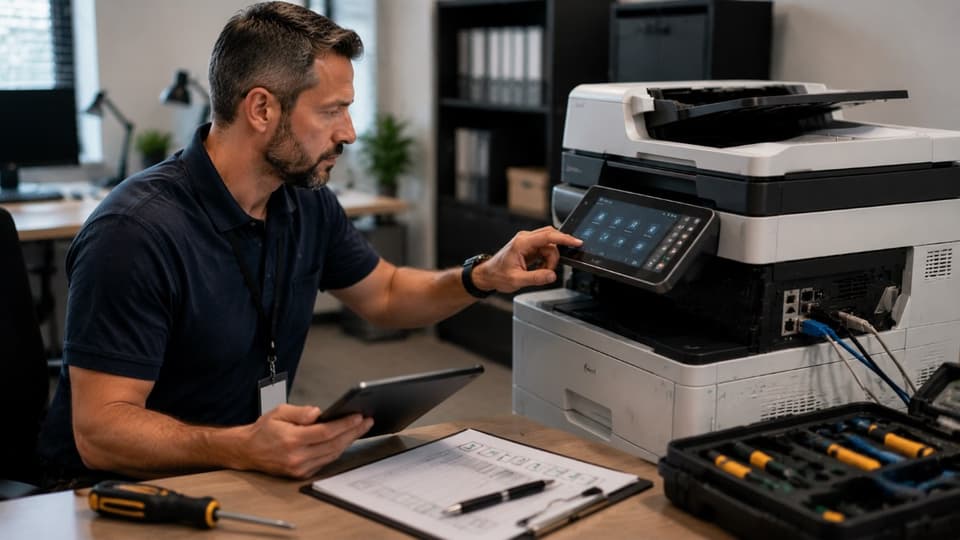
Leasing deserves this extra paragraph because most offices lease, and leasing splits responsibility in ways nobody reads until it matters. The vendor typically owns the hardware, services the mechanics, and schedules the eventual swap; the business, meanwhile, owns every consequence of the data on the drive and the device's behavior on the network, and the contract usually says nothing about firmware updates, admin passwords, or drive handling unless someone negotiated it. The practical result is a machine that belongs to one party, holds the secrets of another, and is patched by neither. Three questions, asked before signing or at the next renewal, close the gap: who applies security updates and on what schedule; does the business get and keep the administrator credentials, since a device you cannot administer is a device you cannot secure; and what, in writing, happens to the storage at end of lease, your wipe, their certified sanitization, or drive removal and return. Vendors field these questions routinely and the good ones answer in a sentence; a vendor who cannot say what happens to the drive is answering a different question, and you should hear it.
End of Life: Where Printer Stories Go Wrong
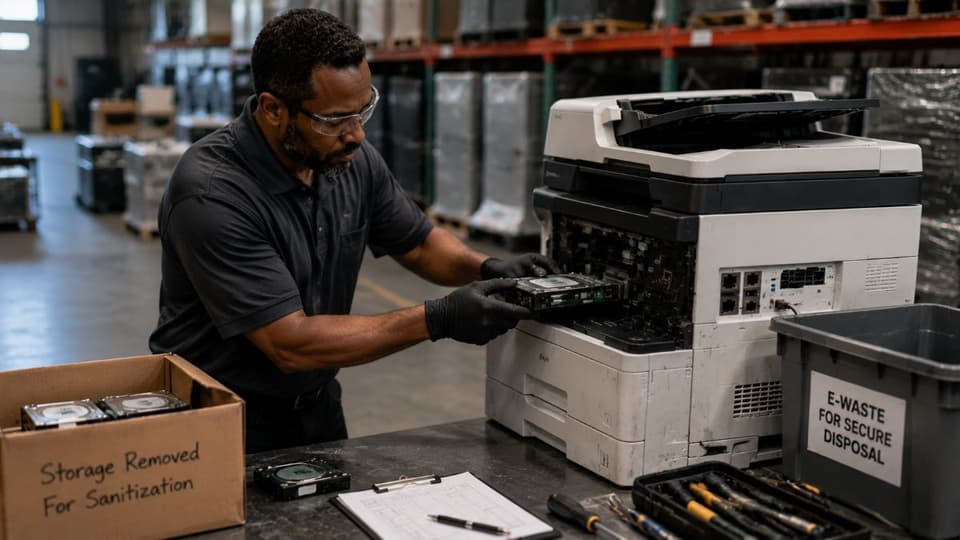
The single most damaging printer mistake happens on the device's last day, not its first. Copiers and multifunction machines leave businesses constantly, returned to leasing companies, sold, donated, recycled, and their drives leave with them, carrying whatever the machine stored across years of service. The rule is the same one that governs every computer that exits your business: storage gets wiped or destroyed, with documentation, before the device crosses the threshold, and leased machines get the same treatment or a written attestation from the lessor. This is not printer-specific wisdom; it is the standard discipline of secure IT asset disposal applied to the one device category everyone forgets is a computer until the story makes the news.
A Special Word for Medical, Legal, and Financial Offices
If your business is regulated, the machine in the corner is inside your compliance scope whether anyone wrote it down or not. It scans patient forms, prints case files, copies financial records; its drive holds traces of them; its logs, or absence of logs, answer an auditor's questions; and its disposal is a regulated data event. Practices routinely inventory every laptop for their risk assessments and skip the device that touches more protected information per day than most of them. Adding printers and copiers to the assessment, the policies, and the disposal procedure costs a paragraph and an afternoon, and it removes a finding that auditors and breach investigators have learned to check first precisely because it is so often missed.
Cheap Wins Are Still Wins
Printer security will never headline a conference, and that is precisely its appeal as a project: the risks are real, documented, and mostly closable in an afternoon with settings the device already has. Change the password, update the firmware, close the unused doors, keep it off the internet, make jobs wait for their owner, and wipe the drive on the way out. Every one of those steps is boring, and boring is what good security mostly is. The attackers counting on the forgotten endpoint are counting on you never reading an article like this one to the end; congratulations on disappointing them.
For businesses across the Valley, a partner providing IT services in the San Fernando Valley can harden every print device as part of routine management, from the admin password to the end-of-lease wipe.
Companies to the northwest can get the same locally through IT support in Simi Valley, with printers watched, updated, and retired as carefully as the computers around them.
If nobody in your office knows the printer's admin password, or worse, everybody could guess it, GlobeVM can fold printer security into your everyday IT management, from the afternoon hardening pass to the documented wipe on the machine's last day.