

If you need to know how to report phishing in Outlook, the safest route in a supported Microsoft 365 environment is usually to select the suspicious message, choose Report, and then choose Report phishing. That sends the message through your organization's configured reporting path and removes the reported phishing message from your mailbox.
Reporting is different from simply deleting a suspicious email. A proper report can give your IT or security team the original message data they need to investigate the sender, links, attachments, and delivery path, while Microsoft can also receive the submission when your organization's settings allow it.
Reviewed October 2026. Microsoft has moved supported Outlook versions toward a built-in Report button, so older instructions that depend on legacy add-ins or different menu names may no longer match what employees see today.
How to Report Phishing in Outlook
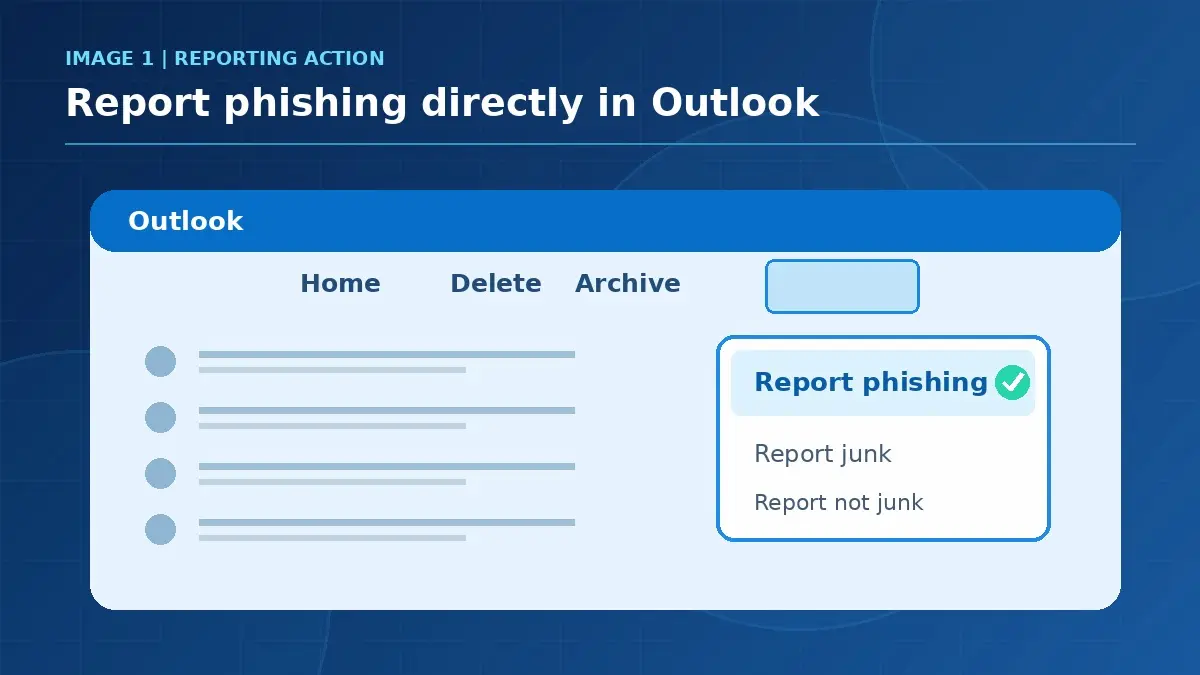
In supported versions of Outlook for Microsoft 365, select the suspicious message, choose Report, and then choose Report phishing. You do not need to open a link, download an attachment, reply to the sender, or forward the message before reporting it.
Microsoft supports the built-in Report button in current Outlook for Microsoft 365 channels, new Outlook for Windows, Outlook on the web, current Outlook for Mac, and current mobile versions. Your organization must also have user reporting enabled and the built-in reporting option configured for the button to appear.
For a business, the reporting button is only one layer of protection. A managed email security program should combine filtering, impersonation protection, link and attachment scanning, reporting, and a process for investigating what employees flag.
New Outlook for Windows and Outlook on the Web
- Select the suspicious email in the message list.
- Select Report from the available message actions.
- Select Report phishing.
- Complete any confirmation prompt shown by your organization's Outlook configuration.
The exact placement of the Report control can vary with ribbon layout and screen size, but the reporting action is the same. In Microsoft's current documentation, the built-in button supports reporting phishing from any email folder in supported versions.
Classic Outlook for Microsoft 365
Current supported builds of classic Outlook for Microsoft 365 also use the built-in Report button. Select one or more suspicious messages, choose Report, and then choose Report phishing from the menu.
If your organization still shows a separate reporting add-in, follow the process your IT team has documented rather than installing a second reporting tool yourself. Microsoft specifically warns administrators against running overlapping Microsoft and third-party reporting buttons because duplicate submissions create unnecessary noise.
Outlook for iPhone and Android
On current Outlook mobile apps, select the suspicious email, tap the three-dot menu, choose Report Junk, and then choose Phishing. The mobile menu wording differs slightly from the desktop Report menu, which is why employees sometimes think the phishing option is missing.
Do not tap a suspicious link just because you are using a phone. The reporting workflow should be completed from Outlook's message controls, not from anything inside the email body.
What Happens After You Report a Phishing Email?
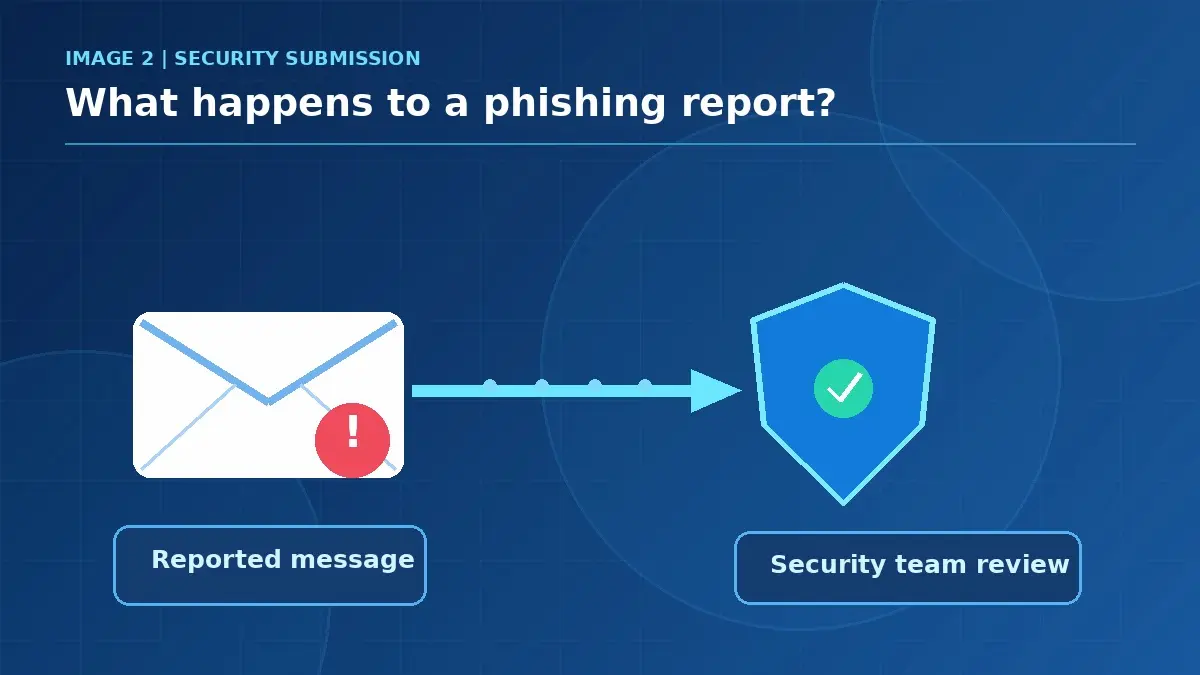
After you report a message as phishing, Outlook deletes the reported message and sends the submission according to your organization's user reported settings. Administrators can configure reports to go to Microsoft, to a designated reporting mailbox, or to both destinations.
When reports reach Microsoft Defender, administrators can review them on the User reported area of the Submissions experience. That gives the security team a place to investigate reports rather than relying on employees to describe a suspicious message from memory.
This is where reporting becomes operationally useful. A managed detection and response process can connect a reported email with identity, endpoint, and cloud activity when a message looks like part of a broader attack.
Reporting Phishing Is Not the Same as Blocking the Sender
Reporting a message as phishing does not mean Outlook has permanently blocked that sender for you. Microsoft distinguishes phishing reporting from junk handling, and its current Outlook guidance notes that a phishing report does not automatically add the sender to the blocked senders list.
That distinction matters because blocking one address is not a complete phishing defense anyway. Attackers can change addresses, use newly created domains, impersonate legitimate contacts, or send from a genuinely compromised account.
Phishing Is Not the Same as Junk
Junk is unwanted mail, while phishing is a message designed to trick the recipient into revealing information, opening malicious content, approving access, or taking another harmful action. In supported Outlook versions, reporting a message as junk moves it to Junk Email and adds the sender to the user's blocked senders list.
A phishing report is treated differently because the security meaning is different. If the message is trying to steal credentials, redirect a payment, impersonate a trusted person, or pressure you into opening a suspicious file, use the phishing option rather than treating it as ordinary spam.
How to Tell When an Email Should Be Reported as Phishing
A phishing email does not have to contain spelling mistakes, a strange logo, or an obviously malicious attachment. Modern attacks often look polished because the goal is to make a normal business request feel just believable enough that the recipient acts before verifying it.
The better question is whether the message is asking you to do something unusual, sensitive, or urgent without a trustworthy reason. That is the habit security awareness training should reinforce, because employees need a simple decision process they can use during a busy workday.
Common Signs That Justify a Phishing Report
- An unexpected request to sign in through a link in the email.
- A payment, gift card, payroll, or bank change that asks you to bypass the normal process.
- A message that appears to come from an executive or vendor but uses an unfamiliar address or domain.
- An unexpected attachment that asks you to enable content, sign in, or open a protected document.
- A password-expiration or account-lock warning that pushes you to act immediately through an embedded link.
- A message that asks for credentials, MFA codes, confidential information, or approval of an unfamiliar sign-in.
None of these signs proves that a message is malicious by itself. If the request could be legitimate, verify it through a separate trusted channel instead of replying to the suspicious message or using the phone number it provides.
Do Not Rely Only on the From Name
The display name in Outlook is not enough to establish who sent a message. An attacker can use a familiar name while sending from a lookalike domain, or a real account can be compromised and used to send a message that passes normal authentication checks.
This is why filtering and email authentication help without solving the whole problem. GlobeVM's guidance on Microsoft 365 security settings explains the technical controls that reduce malicious mail, while user reporting provides a way to escalate the messages that still reach an inbox.
What If the Report Phishing Button Is Missing?
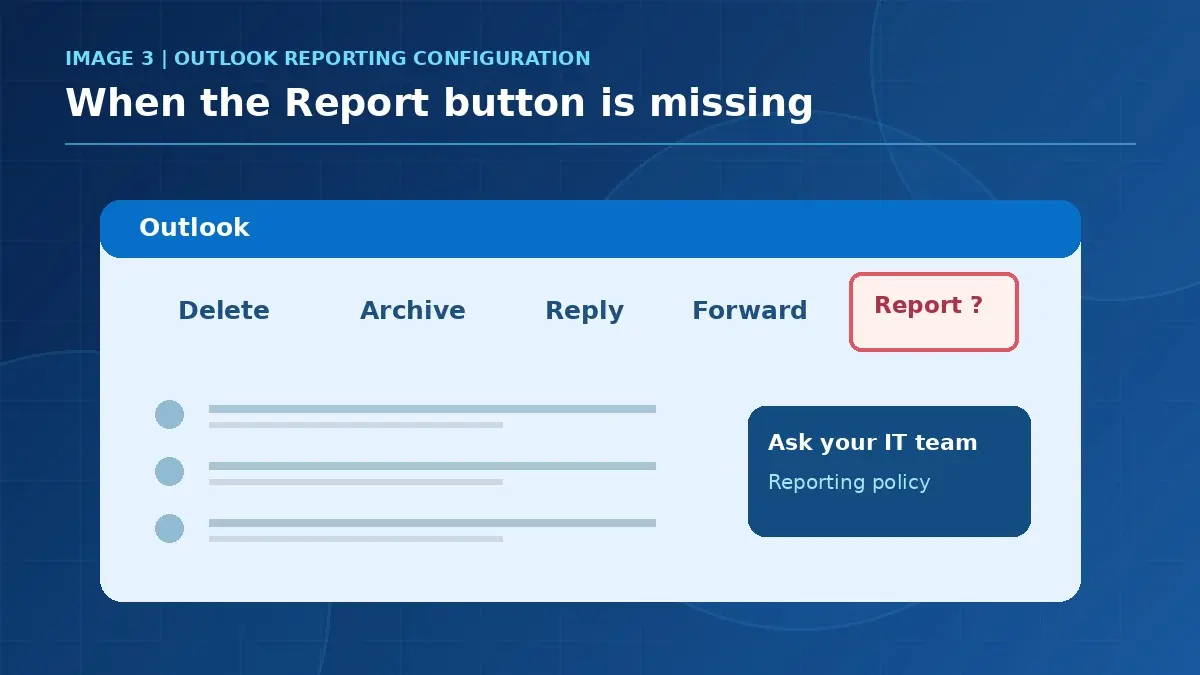
If the Report button is missing in a supported work or school Outlook account, the first step is to ask your IT administrator how reporting is configured. Microsoft only shows the built-in Report button when user reporting is enabled and the tenant is configured to use the built-in reporting experience.
Your organization may instead use a non-Microsoft reporting add-in or a different internal process. Do not install a random add-in or create your own forwarding rule just to reproduce the button, because the security team needs reports to arrive in a consistent format.
Do Not Simply Forward the Suspicious Message
Forwarding a suspicious email to a helpdesk address is not equivalent to a proper phishing submission. Microsoft warns administrators that ordinary forwarding can strip message headers and other information needed for investigation, especially when a reporting workflow expects the original message as a preserved attachment.
If your company has a documented security mailbox, follow its instructions exactly. Otherwise, use the built-in Outlook report function or ask IT how the message should be submitted without changing the original evidence.
Shared Mailboxes Need the Right Permissions
Microsoft's current built-in reporting experience supports shared mailboxes and delegated mailboxes on several Outlook platforms, but delegated reporting can depend on Send As permission. Without the required permission, a report from the shared mailbox may be removed from the folder without being sent to the organization's reporting mailbox.
This is worth testing for finance, billing, reception, and other teams that work from shared mailboxes. Those mailboxes often receive externally facing messages, so a reporting process that works only from each user's personal inbox leaves a practical gap.
What Should You Do If You Already Clicked?
If you clicked a suspicious link, opened a questionable attachment, entered credentials, or approved an unexpected authentication prompt, stop treating the message as an ordinary reporting task. Contact your IT or security team immediately and tell them exactly what you did, including whether you entered a password, downloaded a file, or approved MFA.
If credentials were entered into a suspected phishing site, follow your organization's incident process and change the affected password from a known safe Microsoft sign-in path when instructed. Microsoft also advises users who believe they were victims of phishing to contact their IT administrator and change affected passwords promptly.
For Los Angeles businesses without a full internal security team, a local escalation path matters because a reported phish can turn into an identity or endpoint incident. GlobeVM supports that broader response through managed IT services in Los Angeles, including the support and security work that begins after an employee reports something suspicious.
Why Fast Reporting Matters After a Click
A quick report gives the security team a better chance to investigate the original message while the event is still fresh. Depending on the situation, administrators may need to review sign-ins, revoke sessions, reset credentials, inspect endpoint activity, search for the same message in other mailboxes, or block related indicators.
Those actions are not tasks an employee should improvise. The employee's job is to stop interacting with the message, report what happened accurately, and stay available to answer the security team's questions.
Why User Reporting Is Part of Email Security
Email filtering should stop a large share of obvious malicious mail before it reaches employees, but no filter can judge every context perfectly. A short, clean message from a compromised vendor can look technically legitimate while still asking the recipient to do something fraudulent.
User reporting closes part of that gap by turning employee suspicion into a security signal. The common search phrase report phishing Outlook describes more than a menu click, because the useful outcome comes from what the organization does with the report after the employee submits it.
Reporting Should Feed Investigation, Not a Dead Mailbox
A reporting button is weak if nobody reviews what it sends. Microsoft Defender can surface user-reported messages to administrators, and organizations can route those reports to a dedicated mailbox, to Microsoft, or to both based on their security process.
Security teams should also test the workflow rather than assuming it works. A good phishing simulation program measures whether employees report suspicious messages, not just whether they avoid clicking, because reporting gives defenders a chance to protect everyone else.
That connection is why GlobeVM's guide to phishing simulations treats reporting as one of the outcomes worth measuring. The goal is not to catch employees making mistakes, but to build a habit of escalating suspicious messages through the right channel.
One Report Can Help Protect Other Mailboxes
When an employee reports a real phishing campaign, administrators can investigate whether the same or related message reached other users. That turns one person's caution into information the security team can use across the organization.
This is especially important for finance, executive, legal, and healthcare teams because attackers often target several people with variations of the same request. A reporting culture gives the organization a chance to recognize the pattern before someone else acts on it.
A Simple Rule for Employees
If a message is suspicious and asks you to click, sign in, pay, disclose, approve, or open something you did not expect, do not interact with the request first. Verify through a separate trusted channel when necessary, then use Outlook's phishing reporting process if the message appears malicious.
The procedure should be simple enough that staff do not need to remember a long security policy in the moment. Recognize the unusual request, avoid interacting with it, report it through Outlook, and contact IT immediately if you already clicked or provided information.
Reporting Phishing in Outlook Should Be Routine
Knowing how to report phishing in Outlook gives employees a safe next step when a suspicious message reaches the inbox. In supported Microsoft 365 environments, the core action is straightforward: select the message, choose Report, and choose Report phishing rather than forwarding, replying, or experimenting with the suspicious content.
The stronger business outcome comes when that report reaches a team that can investigate it and when employees know what to do after a click. Email filtering, user reporting, awareness training, and incident response work best as one connected process rather than separate security tools.
Frequently Asked Questions
To report a phishing email in a supported Microsoft 365 version of Outlook, select the suspicious message, choose Report, and then choose Report phishing. The message is then handled according to your organization's reporting settings and is deleted from your mailbox.
The Report Phishing option is normally under the Report control in supported desktop, web, and new Outlook versions. On current Outlook mobile apps, open the message controls, choose Report Junk, and then choose Phishing.
When you report phishing in Outlook, the message is deleted and the report is sent according to your organization's Microsoft 365 configuration. Administrators can route reports to Microsoft, to a reporting mailbox, or to both for review and investigation.
Reporting phishing in Outlook does not necessarily block the sender from sending future messages. Phishing reporting and blocked-sender controls serve different purposes, and your email security system should also detect related addresses, domains, and attack patterns.
The Report Phishing button may be missing because user reporting is disabled, the organization uses a different reporting tool, or the Outlook version does not support the current built-in button. Ask your IT administrator which reporting method your organization has configured.
If you clicked a phishing link, entered credentials, opened a suspicious attachment, or approved an unexpected prompt, contact your IT or security team immediately. Report exactly what happened and follow the organization's incident process rather than trying to investigate the message yourself.
If your team needs a clearer way to report suspicious mail and a security process behind that button, GlobeVM can review your Microsoft 365 email protection, reporting workflow, and response process.
Comments
0 Comments