

Most small businesses upgraded to Windows 11 the way people move into a furnished apartment: they arrived, everything looked fine, and nobody checked what was actually switched on. The operating system underneath is genuinely the most security-capable Windows ever shipped, but it ships tuned for a consumer at home, not for a business holding client files, payroll, and email, and the gap between those two configurations is where small-business incidents live. This guide walks through the Windows 11 security settings that matter for a business, in plain language: what each one protects against, the one detail that usually gets missed, and which of it is a one-time setup versus a discipline that needs an owner.
Why the Defaults Are Not Enough for a Business
Out of the box, Windows 11 makes reasonable choices for an individual: some protection on, conveniences prioritized, and the assumption that the person at the keyboard owns the machine and everything on it. A business breaks every part of that assumption. The person at the keyboard is an employee, not the owner of the data; the machine holds information with legal and contractual strings attached; the same laptop leaves the building, connects to home networks, and gets lost in cars; and the attacker's favorite path is not a Hollywood exploit but a mundane one, a stolen unencrypted laptop, a malicious download run with administrator rights, a document macro, an update postponed for a season. The settings below exist precisely to close those mundane paths, and the honest theme running through all of them is that Windows already contains the protection; a business just has to turn it on deliberately and keep it on consistently, which is harder than it sounds across ten or fifty machines.
The Windows 11 Security Settings That Matter Most
Here is the short tour, ordered roughly by how much risk each setting retires for an ordinary office.
Standard User Accounts: The Biggest Single Win
The most valuable change on this page costs nothing and takes minutes per machine: employees work in standard user accounts, not administrator accounts. On an administrator account, every program the user runs, including the malicious one that arrived dressed as an invoice, runs with the power to install software, disable protections, and dig into the system; on a standard account, that same malware hits a wall the moment it reaches for those powers. Day to day, employees notice almost nothing, since normal work needs no administrator rights, and the occasional legitimate installation becomes a moment where credentials are deliberately entered rather than power being ambient. Separate administrator accounts exist for the person or provider who manages the machines, used only when managing. This single division, ordinary work in ordinary accounts, is the quiet backbone of business device security, and it is skipped in a remarkable share of small offices simply because machines were set up in a hurry on day one.
BitLocker: The Lost Laptop Becomes a Shrug
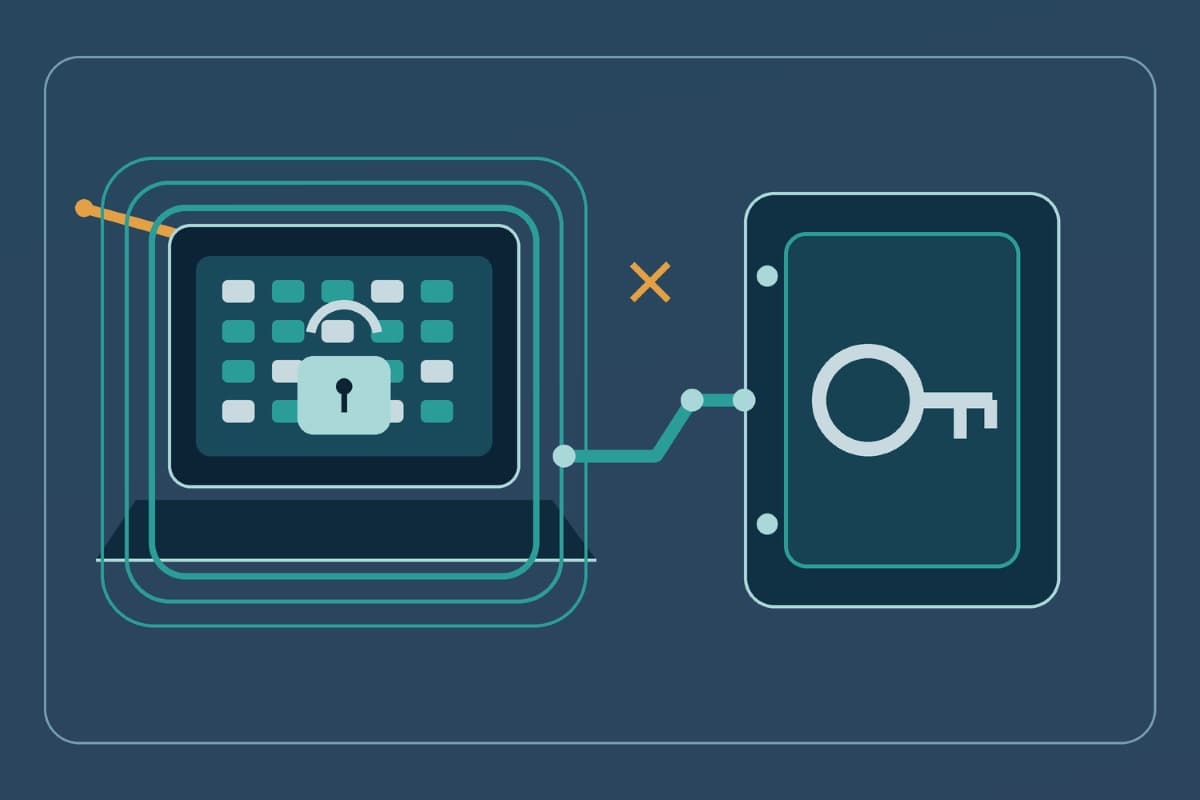
Business editions of Windows 11 include BitLocker, full-disk encryption that makes a lost or stolen machine unreadable to whoever ends up holding it, and it converts the classic small-business nightmare, the laptop full of client files gone from a back seat, from a reportable data incident into a hardware expense. Two details separate doing this from doing it right. First, it has to actually be on, on every machine that leaves the building, and checked rather than assumed, since machines acquired at different times arrive in different states. Second, and this is the one that bites: every encrypted drive has a recovery key, and the business, not the individual employee, must hold those keys somewhere central and durable, because the day a machine demands its recovery key, after certain repairs or hardware changes, an unfindable key means the encryption is now protecting your data from you. Key custody in the company's management system or a controlled vault is the difference between BitLocker as protection and BitLocker as a future lockout.
Windows Hello and the Sign-In Layer
Windows Hello replaces the typed password at the machine with a per-device PIN or biometric, a fingerprint or face, and the security logic is better than it first appears: the PIN or biometric works only on that physical machine, so it cannot be phished from across the world the way a reusable password can, and it ties neatly into the broader move away from passwords that we cover in our guide to phishing-resistant MFA. For a business, the practical wins are humbler and just as valuable: sign-in gets faster, which ends the workarounds, the shared passwords, the sticky notes, that slow sign-in breeds, and every employee authenticating as themselves keeps actions attributable. Pair it with sensible screen-lock behavior, machines that lock quickly when idle or when the user walks away, and the unattended-desk problem in an open office largely retires itself.
The Defender Family: Already Installed, Rarely Finished
Windows 11 ships with Microsoft Defender, a genuinely capable protection suite whose reputation lags a decade behind its quality, and for many small businesses the honest answer to "which antivirus should we buy" is "finish configuring the one you have." Finishing is the operative word, because several of Defender's best protections sit behind settings that default off or get skipped. SmartScreen, which checks downloads and sites against reputation, should be on and not overridden into silence. Controlled folder access, Defender's built-in ransomware guard, stops untrusted programs from rewriting the contents of your document folders, exactly the behavior ransomware exists to perform, and it ships off by default because it occasionally asks questions about legitimate software; a business can afford those questions. Tamper protection keeps malware, or a hurried user, from switching Defender itself off. Whether Defender alone is sufficient depends on your risk and compliance picture, and larger or regulated environments often layer managed detection on top through a proper endpoint security program, but either way, an unconfigured Defender is capability paid for and left in the box.
Smart App Control and the Application Question
Windows 11 introduced Smart App Control, which flips the security model from blocking known-bad software to allowing only known-good software, applications with valid signatures or established reputations, and for the way most offices actually use computers, a stable set of business applications, it removes an entire category of incident: the random downloaded executable simply does not run. The caveat every guide should state plainly: Smart App Control can only be enabled on a fresh Windows 11 installation, not switched on later, so for existing machines it becomes a decision to fold into your replacement and reimaging cycle rather than a setting to flip this afternoon. Businesses managing devices centrally can achieve the same allow-list philosophy through management policies at any time, which is one of several places where individual settings mature into managed policy, a theme we return to below.
Updates on Rails, Not on Feelings
Updates are the least glamorous setting and the most consequential over time, because the majority of real-world compromises exploit flaws for which a fix already existed and simply had not been installed. Windows 11 wants to update itself; the business configuration is mostly about removing human veto power from that process: active hours set so restarts respect the workday, deadlines so postponement has a limit, and a habit of not letting any machine drift months behind because its user finds restarts annoying. The same discipline extends past Windows to the applications on it, browsers, PDF readers, line-of-business tools, which is where unmanaged offices quietly accumulate the recurring problems we catalog in our guide to preventing common business IT problems. If one number could summarize a machine's risk, days since last update would be a strong candidate. One adjacent habit rounds it out: hardware makers ship firmware and driver updates through their own utilities, outside Windows Update, and machines that never run those utilities quietly miss fixes for the very components the operating system sits on.
The Quick Checklist
For the office manager who wants the tour as a to-do list:
- Standard accounts for daily work; separate admin credentials used only for administration.
- BitLocker on for every portable machine, with recovery keys held centrally by the business.
- Windows Hello set up per user, with fast automatic screen lock.
- Defender finished: SmartScreen on, controlled folder access on, tamper protection on.
- Smart App Control enabled on new installs; allow-list policies for managed fleets.
- Updates enforced with active hours and deadlines, applications included.
- Consumer leftovers removed: unneeded preinstalled apps, personal account sync on business machines.
An experienced hand gets a machine through that list in well under an hour, and a new machine set up to a written standard arrives already through it, which is the real lesson of the checklist: the second machine should never be configured from memory.
Settings Drift: Why This Is a Practice, Not a Project
Here is the part the settings articles usually skip. Configure ten machines perfectly today, and in a year they will not match: a protection switched off to troubleshoot something and never restored, a new hire's laptop set up by whoever was free, an update deferred into next quarter, an application installed with a shrug. Unmanaged settings drift, always toward convenience, and drift is invisible until an incident audits it for you. The durable version of everything above is policy: machines joined to central management where the settings are applied automatically, monitored continuously, and reapplied when they wander, so the question changes from "did we set this up right" to "can any machine quietly leave the standard," and the answer becomes no. This is the device half of a pairing, the cloud half being your Microsoft 365 tenant, whose equivalent hardening we walk through in Microsoft 365 security settings.
Keeping both halves aligned and drift-free is bread-and-butter work inside a managed IT services relationship, where the standard is written once, enforced everywhere, and audited without anyone walking desk to desk.
Capable by Default, Secure on Purpose
Windows 11 gives a small business more built-in protection than any generation before it, and then politely waits to be asked. The Windows 11 security settings above, standard accounts, BitLocker with custodied keys, Hello at the sign-in, a finished Defender, application control, updates on rails, are not exotic hardening; they are the operating system's own features, turned on the way a business should have them, and together they retire the mundane incidents that actually happen to small companies. Do the checklist once per machine, write the standard down, and then solve drift with management rather than memory. The furnished apartment came with locks; this is the afternoon you walk around and actually turn them.
For businesses across the Valley, a partner providing IT services in the San Fernando Valley can bring every machine to the standard and keep it there with managed policy.
Companies in the Conejo Valley can get the same locally through IT support in Thousand Oaks, from the first checklist pass to the monitoring that catches drift.
Frequently Asked Questions
Defender in Windows 11 is a genuinely capable protection suite, and for many small offices a properly finished Defender, SmartScreen on, controlled folder access enabled, tamper protection on, covers the everyday threat picture well. The honest qualifier is configuration and oversight: an unconfigured Defender leaves its best features off, and no product replaces monitoring. Regulated businesses and those with higher risk often layer managed endpoint detection on top, which adds around-the-clock eyes rather than replacing the built-in engine.
If a machine demands its recovery key, which can happen after certain repairs, firmware updates, or hardware changes, and the key cannot be produced, the encrypted data is effectively gone; the protection works exactly as designed, against you. That is why key custody is the half of BitLocker businesses must get right: recovery keys belong in a central, company-controlled location, a device management system or controlled vault, recorded at the moment encryption is enabled, never solely with the individual employee.
For daily work, no. Standard user accounts stop most malware at the moment it reaches for system-level power, because software run by a standard user cannot install itself deeply, disable protections, or dig into the system. Employees rarely notice the difference, since normal work needs no administrator rights, and legitimate installations become deliberate moments instead of ambient risk. Administration happens through separate credentials held by whoever manages the machines, used only when managing.
The first pass is a one-time project: an experienced hand configures a machine in under an hour against a written standard. Keeping it true is ongoing, because unmanaged settings drift toward convenience, protections get switched off during troubleshooting, new machines get set up from memory, updates get deferred. The durable answer is central management that applies the standard automatically and flags any machine that wanders, turning the checklist from a memory exercise into an enforced baseline.
If nobody can say with confidence which of your machines are encrypted, updated, and running as standard users, GlobeVM can bring the fleet to a written standard and enforce these Windows 11 security settings everywhere, permanently.
Comments
0 Comments