HIPAA-compliant email is not a product you buy. It is an email setup that meets three conditions. Your provider has signed a business associate agreement (BAA), messages carrying patient information are protected on the way to the recipient, and the practice controls who can reach each mailbox and what leaves it. A signed agreement on a loosely configured inbox does not qualify, and neither does a well-configured personal account that no agreement covers.
Credential Stuffing: How Leaked Passwords Become Your Problem

By George
12 October 2026

Many practices already have the pieces and simply have not put them together. This guide compares the three realistic routes for a small practice: Microsoft 365, Google Workspace, and dedicated HIPAA-compliant email services. It then covers the settings to turn on before anyone sends patient information, what the rules allow when patients ask for email, and the mistakes that turn an ordinary message into a reportable breach.
What Makes Email HIPAA Compliant
HIPAA does not ban email. HHS guidance allows covered entities to send electronic protected health information by email when it is appropriately protected, and the Security Rule's transmission security standard sets the bar. Encryption is an addressable specification: you must use it when it is reasonable and appropriate, or document why an equivalent measure works instead. For patient information leaving your organization over the internet, encryption is the reasonable choice in almost every case.
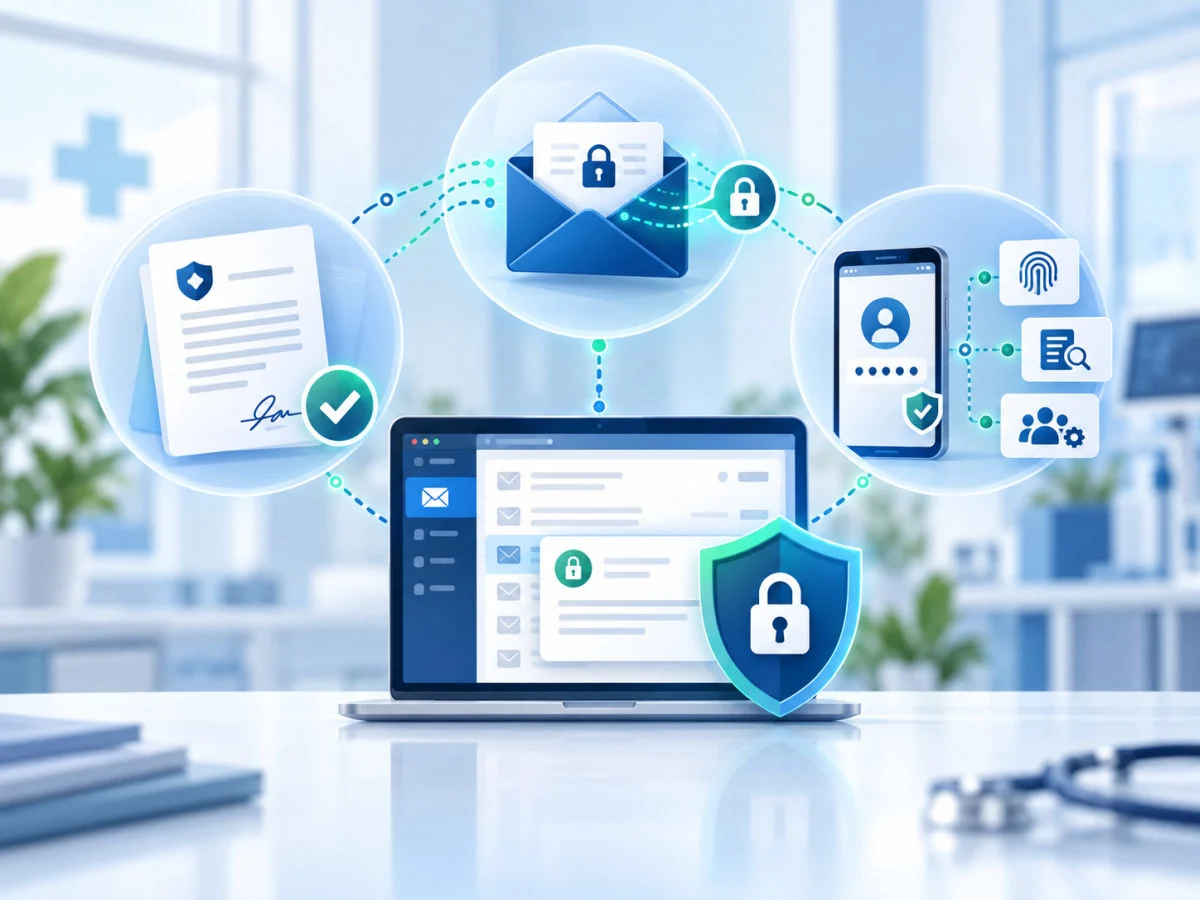
In practice, a compliant setup has three layers. The agreement layer is a BAA with every company that stores or processes your email. The protection layer is encryption in transit, plus message-level encryption where needed. The control layer covers multifactor authentication, forwarding rules, audit logs, retention, and the devices that can open the mailbox.
Transit Encryption and Message-Level Encryption
Most business email is already encrypted between mail servers with a protocol called TLS, as long as both sides support it. Message-level encryption goes further by protecting the message itself, so only the intended recipient can open it even when their mail system is set up differently from yours. The details of what each form of email encryption does and does not cover matter when you decide which messages need the stronger kind.
A useful rule for small practices: messages to patients, and to outside parties you do not control, should use message-level encryption. Messages to partners whose connections you have verified, such as a billing company with enforced TLS, can rely on transit encryption. Write that rule down so staff do not have to guess each time.
Why Encryption Also Matters After a Mistake
Under the HIPAA breach notification rules, patient information encrypted to the standard in HHS guidance is not considered unsecured. That can decide whether a lost laptop or an intercepted message becomes a reportable breach. Encryption does not solve all of it, though: if staff send an encrypted message to the wrong address and that person can open it, the information has still been disclosed.
HIPAA-Compliant Email Providers: The Three Routes
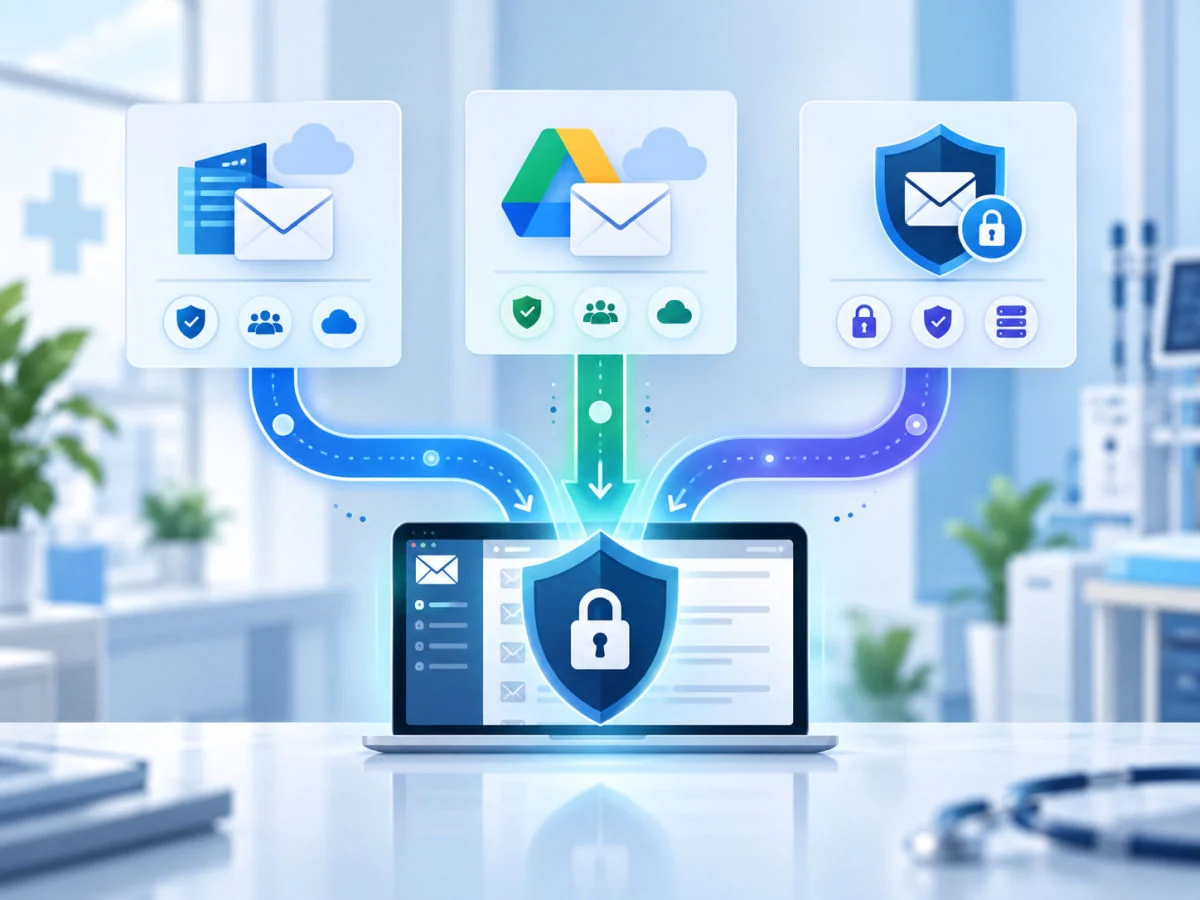
For a small practice, the choice is rarely between dozens of vendors. It comes down to using the platform you already have, adding a service built for regulated email, or combining the two.
Microsoft 365 and Outlook
Microsoft makes its HIPAA business associate agreement available by default to customers that are covered entities or business associates, through the data protection terms for its online services. Exchange Online, the service behind Outlook in Microsoft 365, is within the scope of that agreement. Consumer Outlook.com accounts are not. For practices already on Microsoft 365, the agreement is usually the easy part.
Encryption depends on your plan. Microsoft Purview Message Encryption adds the Encrypt option in Outlook and lets outside recipients open protected messages with a one-time passcode or a Microsoft account. It is included in Microsoft 365 Business Premium and the enterprise E3 and E5 plans. Practices on Business Basic or Business Standard need an upgrade or an add-on first, a gap that managed Microsoft 365 support should catch during setup.
Google Workspace and Gmail
Google offers a HIPAA business associate agreement for paid Workspace editions, which an administrator reviews and accepts in the Admin console. Gmail is among the covered services, while a personal Gmail address never qualifies, however carefully it is used. Our guide to whether Google Workspace is HIPAA compliant covers the setup, the covered services, and the common mistakes in detail.
Gmail uses TLS when the receiving server supports it. Stronger message-level protection depends on your Workspace edition or an add-on service. Practices that email patients regularly should confirm which option they have before assuming their messages are protected end to end.
Dedicated Encrypted Email Services
A third route adds a service built for regulated email on top of Microsoft 365 or Google Workspace. Companies in this space, such as Paubox and Virtru, sign BAAs with healthcare customers. Paubox includes its BAA with every account, and Virtru offers one with most paid plans. Some of these services encrypt every outgoing message automatically so most patients read it like ordinary email, while others use a plug-in or a secure portal.
These services fit three situations best. The first is a practice on a Microsoft plan without built-in encryption that does not need the rest of Business Premium. The second is a practice that sends a high volume of patient email, and the third is a team whose patients struggle with portals. Compare the per-user cost against a plan upgrade before deciding, because the upgrade sometimes brings other protections the practice needs anyway.
How to Choose Between Them
Start with what you already run. A practice on Microsoft 365 Business Premium should configure the encryption it already owns. A practice on a lower Microsoft plan should price the upgrade against a dedicated service, and a practice on Google Workspace should accept the BAA and confirm its encryption option. Whatever the route, staff send patient information from a covered business account, never from a personal one.
Settings to Turn On Before Anyone Sends Patient Information
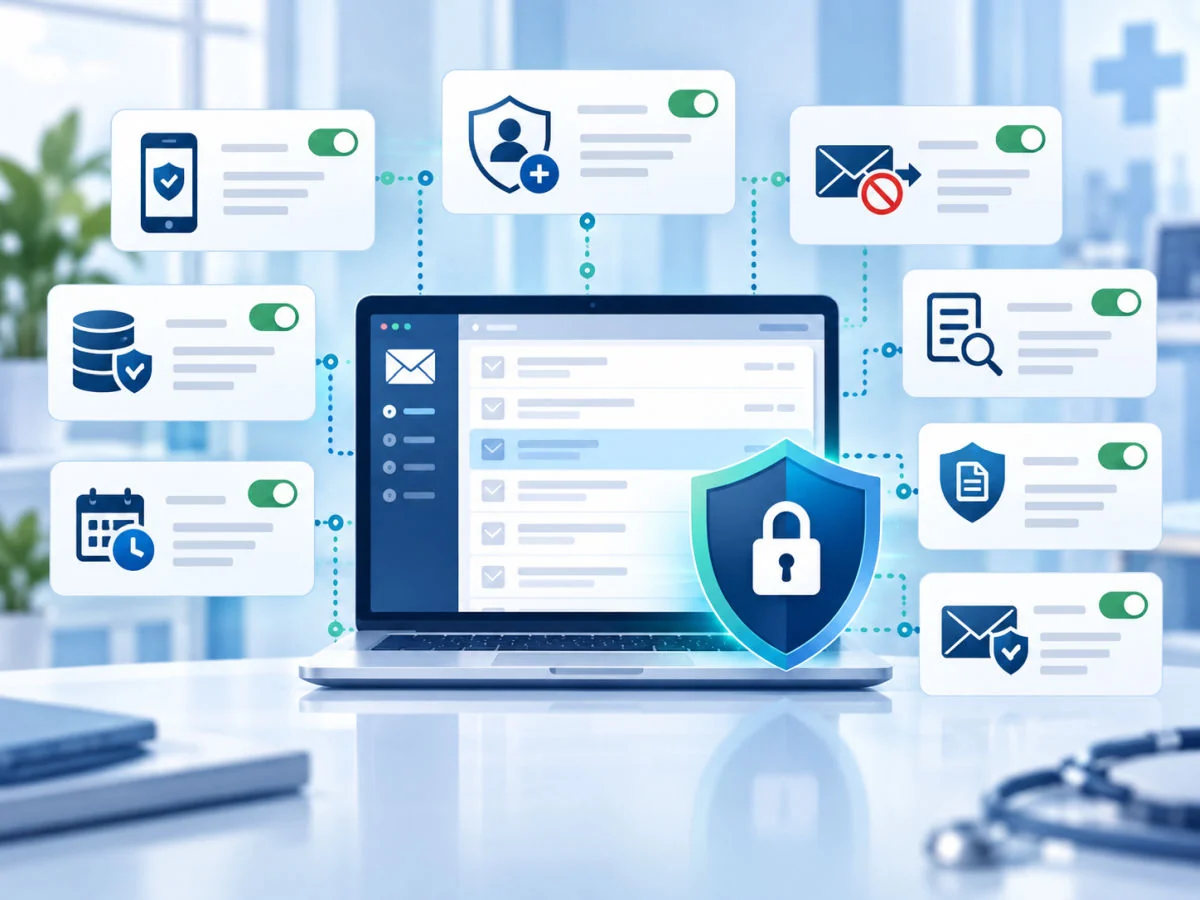
The agreement makes a provider eligible, and configuration makes the inbox safe. These are the settings that matter most for a small practice:
- Multifactor authentication on every mailbox, including the accounts used to reach shared mailboxes.
- Automatic forwarding to outside addresses blocked, with existing forwarding rules reviewed and removed.
- Audit logging on, with logs kept for as long as your policies require.
- Encryption rules that protect messages automatically based on their content or a keyword staff add to the subject line.
- Retention policies that match your record-keeping rules, so mail is neither lost early nor kept forever.
- Mobile device controls such as a required passcode, app protection, and remote wipe for phones that open work mail.
- External sender tags that label messages from outside the practice, which helps staff spot impersonation.
Automated rules carry more of the load than training alone. Data loss prevention policies can scan outgoing mail for patterns such as medical record or Social Security numbers. They can then encrypt or block the message before it leaves, so a busy front desk does not have to remember every time.
Phishing filtering and sender authentication records round out the list, because the settings above all assume the account itself has not been taken over. Both Microsoft 365 and Google Workspace include baseline filtering, and many practices add a dedicated layer on top.
Shared Inboxes Without Shared Passwords
Many practices run at least one shared address, such as a front desk or billing inbox. In Microsoft 365, each person opens a shared mailbox through their own account rather than a shared password. Access can be granted and removed person by person, and the audit trail shows who did what. Google Workspace offers comparable group and delegation options.
Set up this way, a departing employee loses access to the shared inbox the moment their own account is disabled. Nobody has to change a password half the office knows. Block direct sign-in to the shared mailbox itself so it cannot become a back door.
Emailing Patients: What the Rules Allow
Patients have a right to receive their information in the form they ask for, and that includes unencrypted email. When a patient requests it, briefly warn that unencrypted email can be read by others in transit, confirm the patient still wants it, and note the choice in the record. If the patient accepts that risk after the warning, the practice is not responsible for a disclosure in transit, as our guide to the rules for emailing and texting patients explains in more detail.
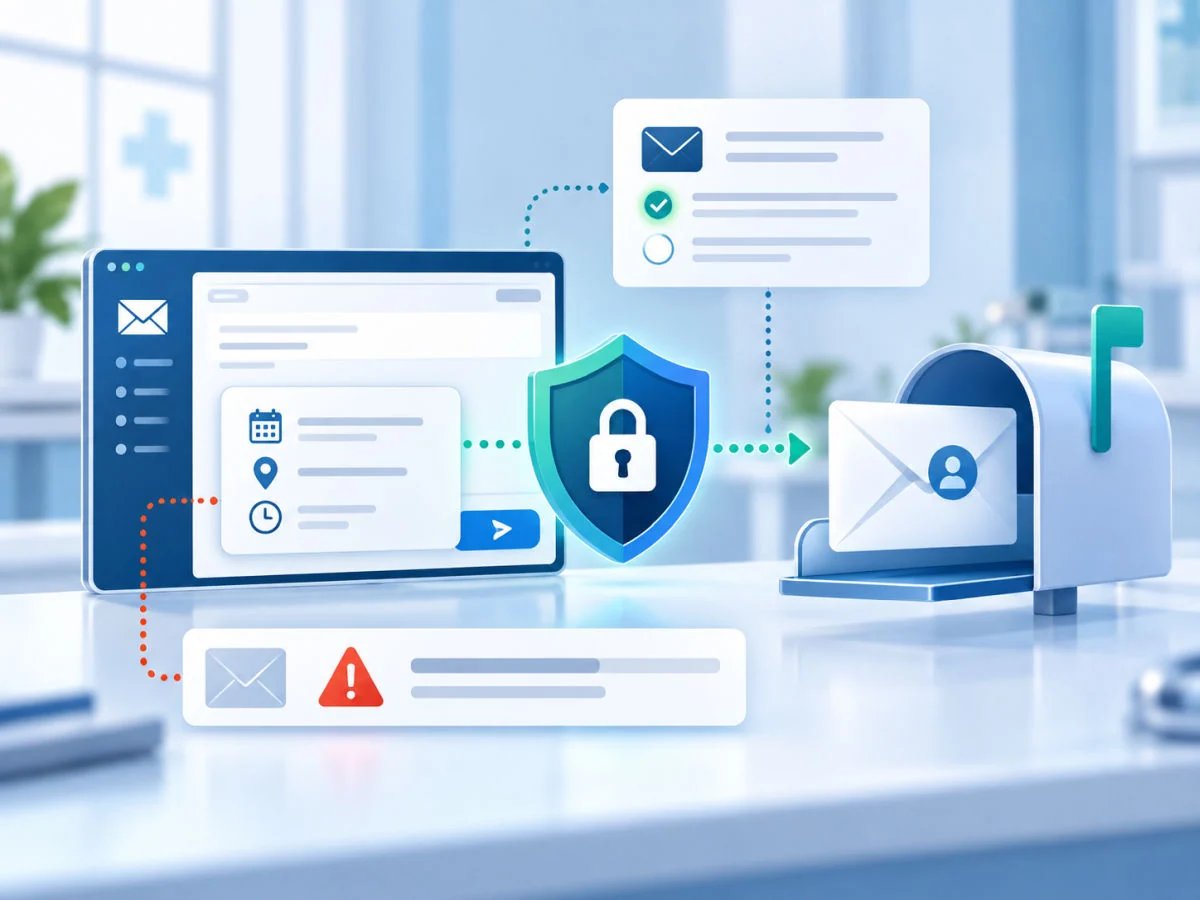
Routine messages should carry only what they need. Appointment reminders rarely need more than a date, a time, and a callback number. Diagnoses and test results never belong in a subject line, which often appears on lock screens and in notification previews.
Newsletters and Marketing Platforms
Many email marketing platforms will not sign a BAA. A newsletter with general health tips is usually fine. A campaign that reveals a patient relationship or health detail is different, such as reminders sent through a marketing tool or lists segmented by condition, and it needs a platform that signs an agreement or should not run at all.
Mistakes That Turn Email Into a Breach
Many email incidents at small practices start with ordinary habits rather than sophisticated attacks. These come up again and again:
- Autocomplete filling in the wrong recipient, especially for patients with similar names.
- Forwarding work mail to a personal account to read it at home.
- A shared front desk password that nobody changes when staff leave.
- Sending a full record when the request only needed a single report.
- Leaving former employees' mailboxes active for months.
- Replying to a convincing phishing message and handing over the mailbox.
Two small changes prevent a surprising share of misdirected mail. A short delay on outgoing messages gives staff a few seconds to catch the wrong address. A warning when a message goes to an outside recipient prompts a second look before anything leaves.
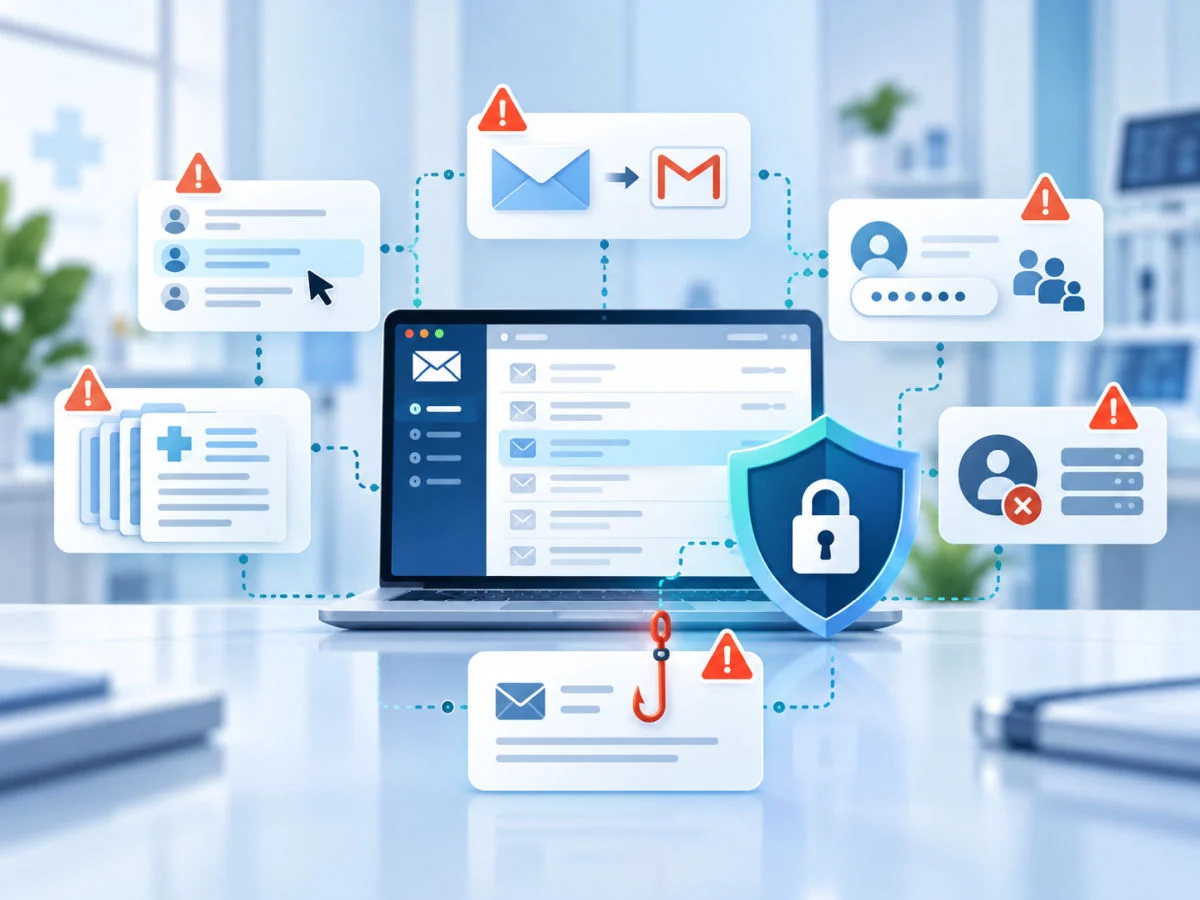
Phishing is the other common path to a breach, since a single stolen password can expose a mailbox full of patient messages at once. For practices on Microsoft, the Microsoft 365 phishing protection settings are the first layer to review.
Getting Your Practice Email Right
HIPAA-compliant email comes down to an agreement you can find, encryption that matches how you communicate, and settings that stop common mistakes before they happen. Many practices can get there on the platform they already use, often with a plan change and an afternoon of configuration. The harder part is keeping it that way as staff, devices, and vendors change.
Inbox protection is part of the same picture, since a mailbox that attackers take over undoes every other safeguard. That is why email security belongs in the plan from the start, working alongside the HIPAA settings described above.
Review the setup once a year alongside your risk analysis, and whenever you change plans or add a service that touches patient mail. Keep the BAA, the plan details, and the list of settings with your other compliance records.
Local help makes the configuration and training easier to keep current. For practices in the Conejo Valley, the same team can set up the mail system, train the front desk, and check the settings when something changes.
Frequently Asked Questions
A personal Gmail account is not. Gmail within a paid Google Workspace edition can be used for patient information once an administrator accepts Google's business associate agreement. The account also has to be configured correctly, including multifactor authentication and an appropriate encryption option for messages that leave the practice.
Outlook with Microsoft 365 can be, because Microsoft's business associate agreement covers Exchange Online for covered entities and business associates. Consumer Outlook.com accounts are not covered. Check your plan as well, since Microsoft's built-in message encryption is included in Business Premium and the enterprise E3 and E5 plans but not in Business Basic or Business Standard.
Encryption is an addressable requirement, so you must use it when it is reasonable and appropriate or document an equivalent safeguard. For patient information sent over the internet, encryption is the reasonable choice in almost every case. The main exception is a patient who asks for unencrypted email after being warned of the risk.
For most small practices, the best option is the platform they already use, either Microsoft 365 or Google Workspace, configured with a BAA and encryption. Dedicated encrypted email services such as Paubox or Virtru are strong choices when the current plan lacks built-in encryption or patients need a simpler reading experience.
Yes, if the patient asks for it. Warn the patient that unencrypted email carries a risk of being read by others, confirm the request, and document it. Without that request, messages containing patient information should be encrypted.
No. The agreement makes the provider eligible to handle patient information, but compliance also depends on encryption, multifactor authentication, forwarding controls, audit logs, retention, and staff habits. Many practices have a signed agreement and an inbox that still falls short.
If you want to know whether your practice's email meets HIPAA today, GlobeVM can review your provider, plan, and settings and show you exactly what needs to change.
Comments
0 Comments